Network documentation that keeps itself current
Docusnap365 discovers your network devices agentlessly and generates up-to-date topology, network and routing maps with every scan.
How automated network documentation works
Automated network documentation discovers every active component on your network, from switches and routers to DHCP scopes and DNS records, and maps the connections between them. It runs agentlessly over standard protocols such as SNMP and SSH. Because scans run on a schedule, the documentation stays current without anyone updating it by hand.
Why manual network documentation reaches its limits
New devices, changed routes, reassigned VLANs. The network keeps moving; the only question is whether the documentation keeps up.
Capture changes faster
Weeks can pass between manual updates. In the meantime the network moves on while the documentation stands still. Automated scans close exactly that gap.
All information in one place
Network diagrams in Visio, IP lists in Excel, DHCP configurations in Server Manager. Three separate sources to cross-reference.
Stay operational during outages
When a network segment goes down, the team needs immediate clarity on dependencies and connections. Up-to-date maps deliver that clarity before pressure mounts.
How your network documentation builds itself
From switches to DNS records: the network components Docusnap365 covers
Every module is included in every Docusnap365 license. Discovery runs agentlessly, with no software installed on target systems.
Switches and routers
Discovered via SNMPv1/v2 or SNMPv3 with authenticated communication. Ports, VLANs and connections are documented automatically.
DHCP and DNS
Windows DHCP scopes, leases and reservations as well as DNS zones and records flow straight into the CMDB.
IP hosts and reachable devices
The IP scan identifies every active host in defined network ranges, including devices that are not listed in any directory service.
Cisco Meraki
Network devices, access points, switches and security appliances from Meraki environments are inventoried via the API.
Virtualization and storage
VMware, Hyper-V, Proxmox and Nutanix are captured along with their network configuration. Storage systems including volumes and LUN mappings.
Relationships and dependencies
Docusnap365 detects relationships between network components automatically and displays them graphically. Critical connections can be flagged directly.
Why network documentation works with Docusnap365
Agentless, with zero footprint on live systems
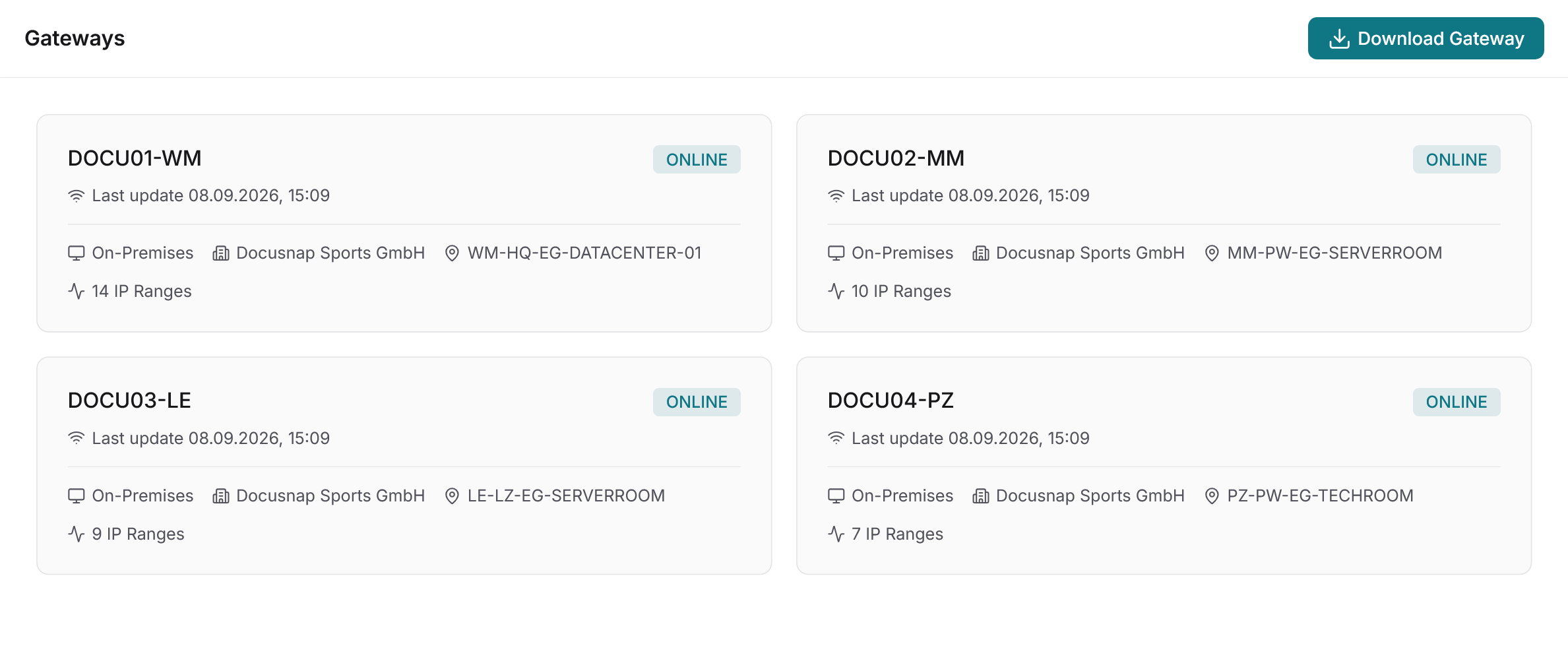
Docusnap365 scans network devices over standard protocols, with no software installed on target systems. The Docusnap Enterprise Gateway runs the discovery and keeps credentials local. Only inventory results travel to the cloud. For environments with separated security zones, a tier model is available: one gateway per segment, all data in the same cloud CMDB.
One CMDB for network, servers and cloud
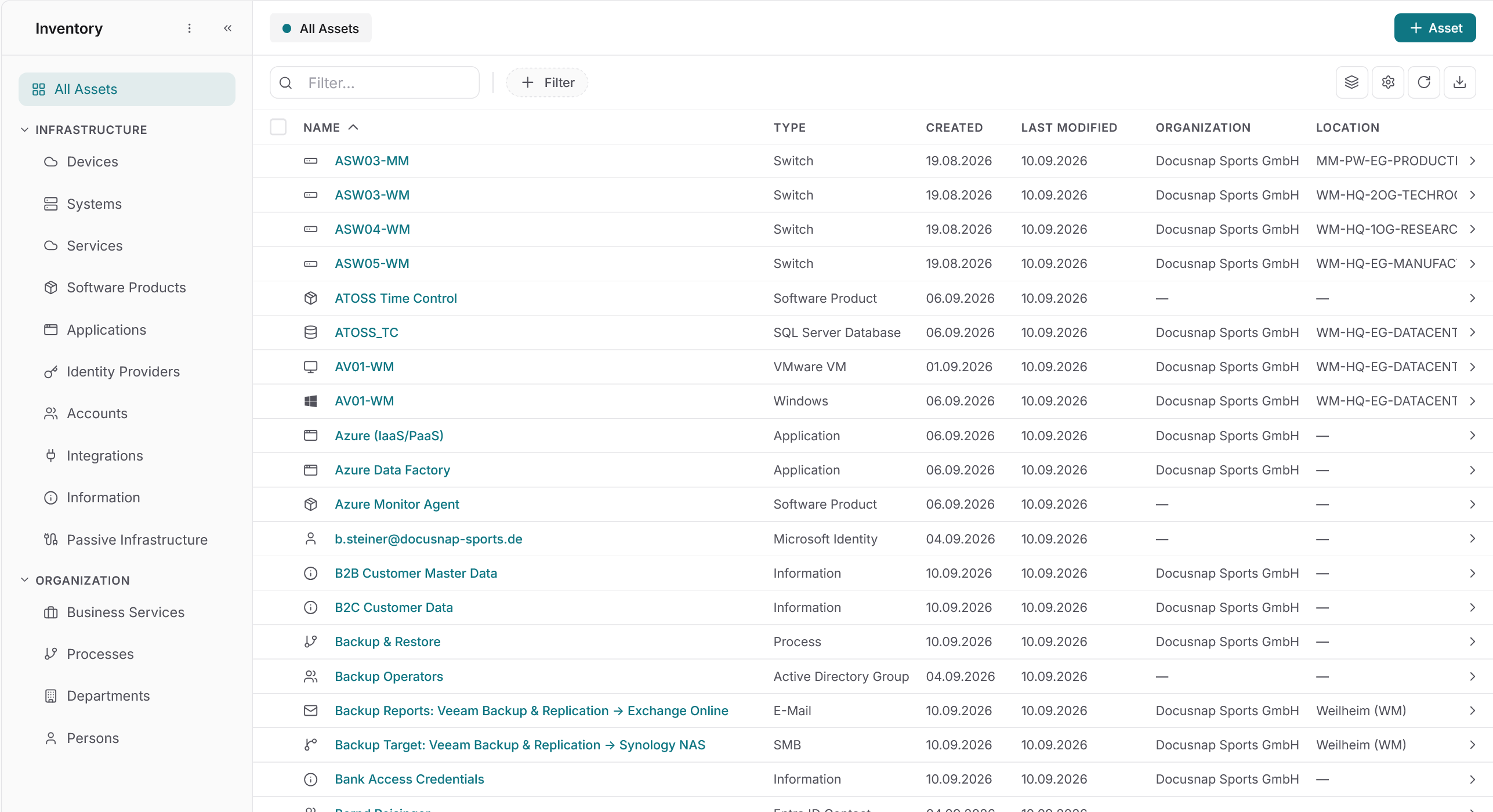
In Docusnap365, network devices, servers, clients, Active Directory, Microsoft 365 and license information all live in the same CMDB. Open a network component and you immediately see which servers connect through it, which permissions apply and which contract it belongs to. One dataset, one view.
Common questions about network documentation with Docusnap365
Which network devices does Docusnap365 discover automatically?
Docusnap365 inventories every device reachable via SNMP, SSH or IP scan: switches, routers, firewalls, access points, printers and other network components. A dedicated module covers Cisco Meraki environments. DHCP scopes, DNS zones and IP hosts are captured as well.
Does any software need to be installed on network devices?
Discovery is fully agentless. The Docusnap Enterprise Gateway is installed once on the local network and communicates with target systems over standard protocols. No software is installed on the network devices themselves and no configuration is changed.
How current do the network maps stay?
Network, topology and routing maps regenerate with every scan. Scan intervals are configurable individually, from daily to custom cycles. Every change in the network is reflected automatically on the next run.
Can segmented networks with separate security zones be documented?
Docusnap365 supports a tier model: each network segment runs its own Docusnap Enterprise Gateway. All gateways deliver their results into the same cloud CMDB. There is no limit on the number of sites or gateways.
What formats are available for exporting network maps?
Network maps can be exported as Visio, PDF, SVG and further formats. That makes it straightforward to integrate them into existing documentation workflows or share them with auditors and service providers.
See network documentation in action
See for yourself how Docusnap365 inventories your network agentlessly and turns the results into up-to-date network maps.